




Hello Developers,
Here you can find quick code for the customization in shipping and billing Fields
I am giving you an example to rename, remove, reorder and adding field in checkout page .
When working with filters you can change only file – functions.php and make sure if you are using readymade theme; create child theme and work on functions.php file.
1) Rename of Company name in billing and shipping Fields :
Before result :
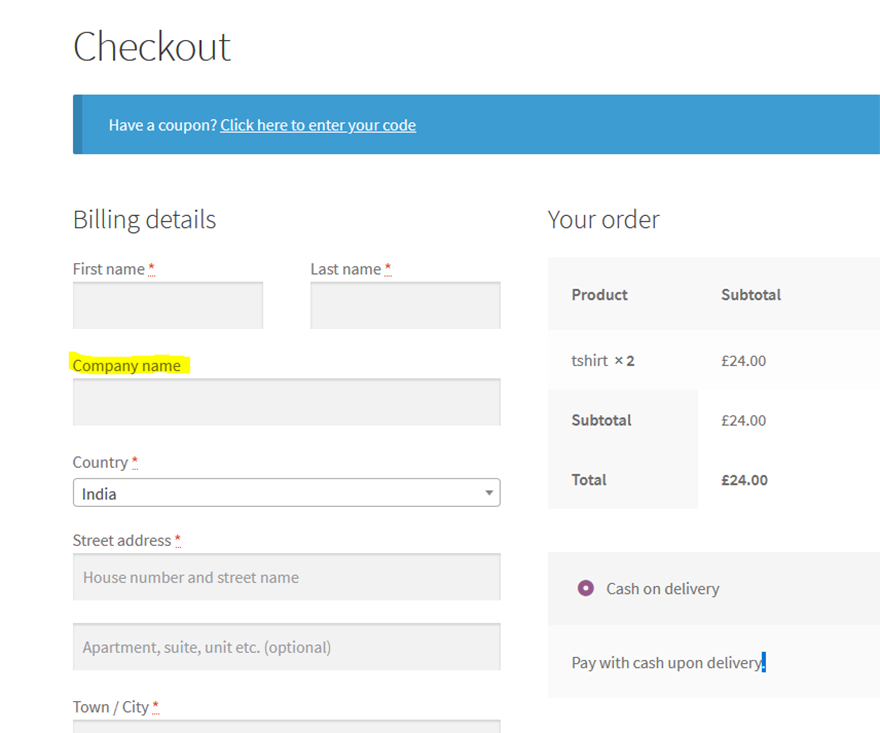
Code is as below to change the label :
Use below code in your function.php file
add_filter( 'woocommerce_shipping_fields' , 'custom_rename_wc_new_shipping_fields' );
add_filter( 'woocommerce_billing_fields' , 'custom_rename_wc_new_billing_fields' );
function custom_rename_wc_new_shipping_fields( $fields ) {
$fields['shipping_company']['label'] = 'Name';
return $fields;
}
function custom_rename_wc_new_billing_fields( $fields ) {
$fields['billing_company']['label'] = 'Name';
return $fields;
}
After adding code the result is as below:
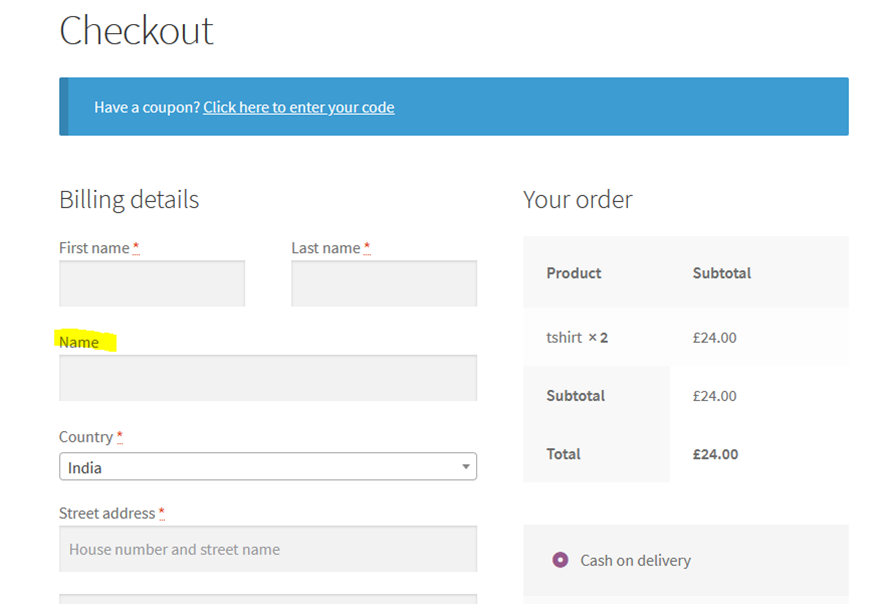
2) Remove any field on shipping and billing form :
Please, do not hide checkout fields in CSS.
Before Result:
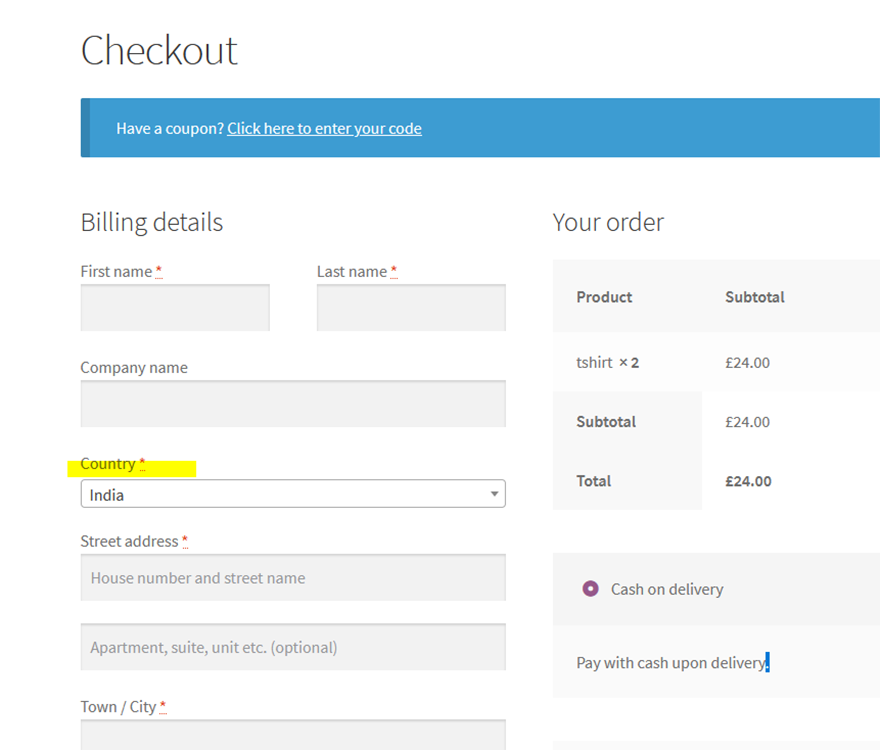
Code to remove particular field (Here I am trying to remove Country):
Using below code in your function.php file
add_filter( 'woocommerce_checkout_fields' , 'custom_remove_woo_checkout_fields' );
 function custom_remove_woo_checkout_fields( $fields ) {
unset($fields['billing']['billing_country']);
unset($fields['shipping']['shipping_country']);
return $fields;
}
After Result:
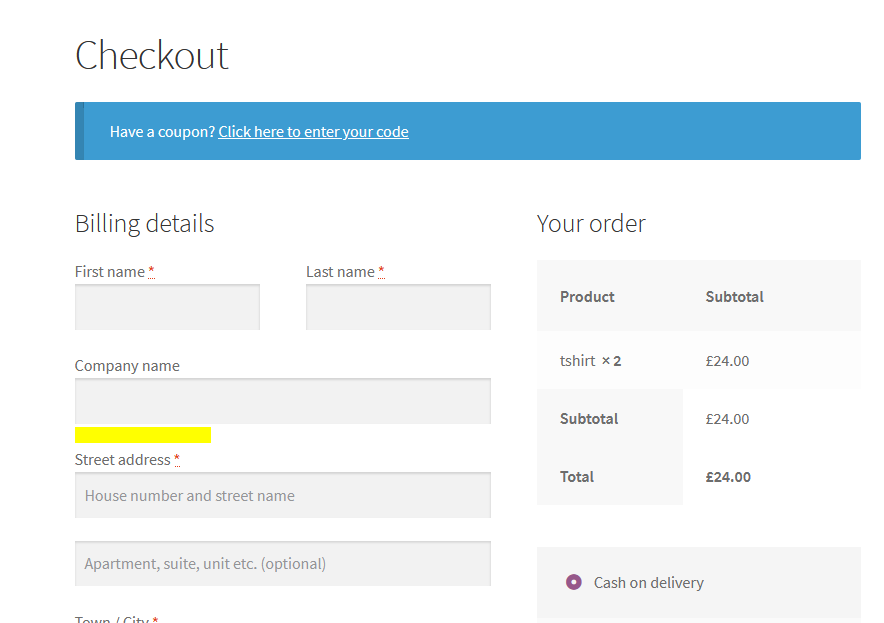
3) Reorder any field on shipping and billing form :
Before Result:
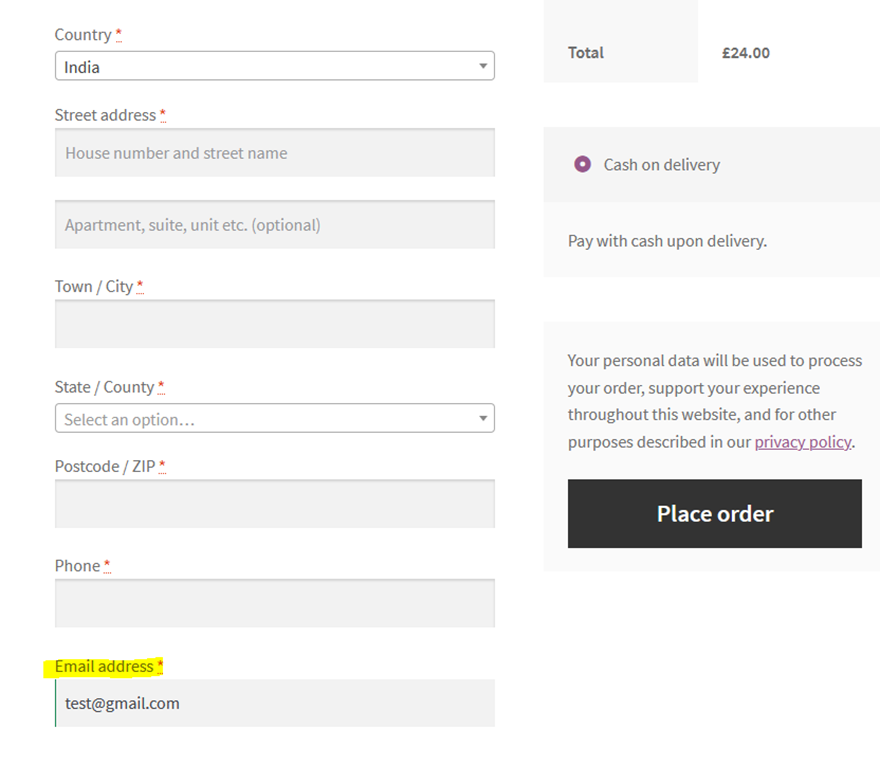
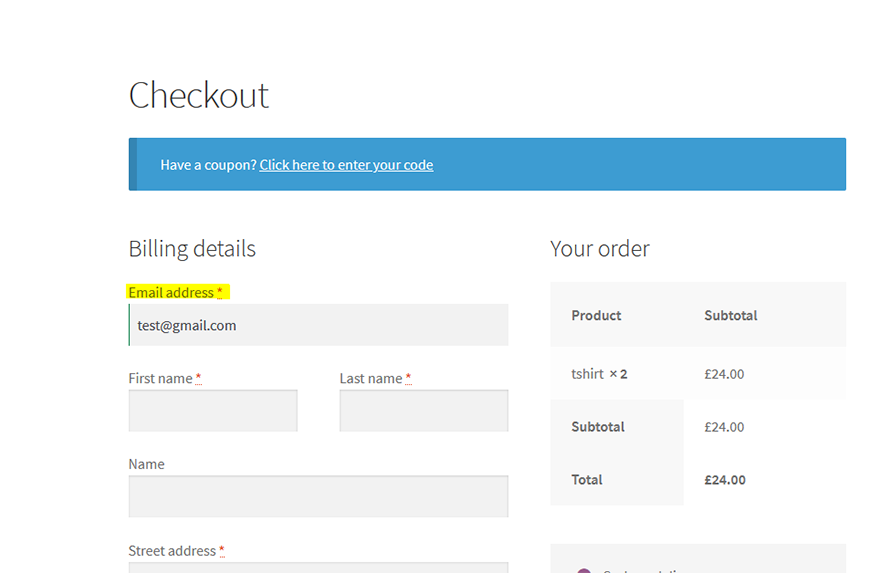
You can easily reorder them with a priority parameter. For Example I would like to make the email field first one to display.
Use below code in your Function.php file
add_filter( 'woocommerce_billing_fields', 'move_checkout_email_field', 10, 1 );
 function move_checkout_email_field( $change_fields ) {
 $change_fields['billing_email']['priority'] = 5;
 return $change_fields;
}
Why I set priority to 5 ? Let me explain, each of default fields has its own priority. And email field priority is 10 so To make the email field first I have to use a value less than 10.
4) Put Custom Checkbox in form :
Use below code in your Function.php file
 function new_add_custom_checkbox_fields( $checkout ) {
             echo '<div id="my-new-checkbox-field">';
        woocommerce_form_field( 'custom_checkbox', array(
            'type'          => 'checkbox',
            'label'         => __('Terms and condition'),
           'checked'    => 'checked',
         ), $checkout->get_value( 'custom_checkbox' ));
        echo '</div>';
    }
add_action('woocommerce_after_order_notes', 'new_add_custom_checkbox_fields');
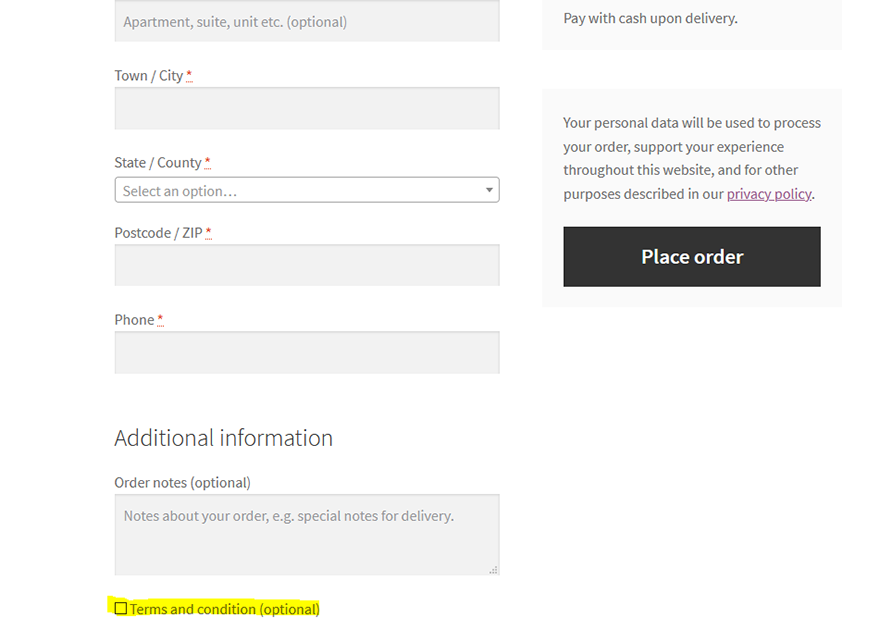
And the output is:
Thank you and Keep coding 🙂
